[1] Install the MIT Atlas app from the Apple App Store:
Open and log into the MIT Atlas app using the "Alumni Login" option. Enter your Infinite Connection username and password (same as what you use to log into the MIT Alumni Association website).
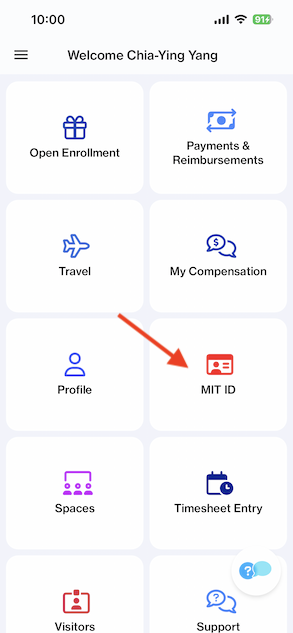
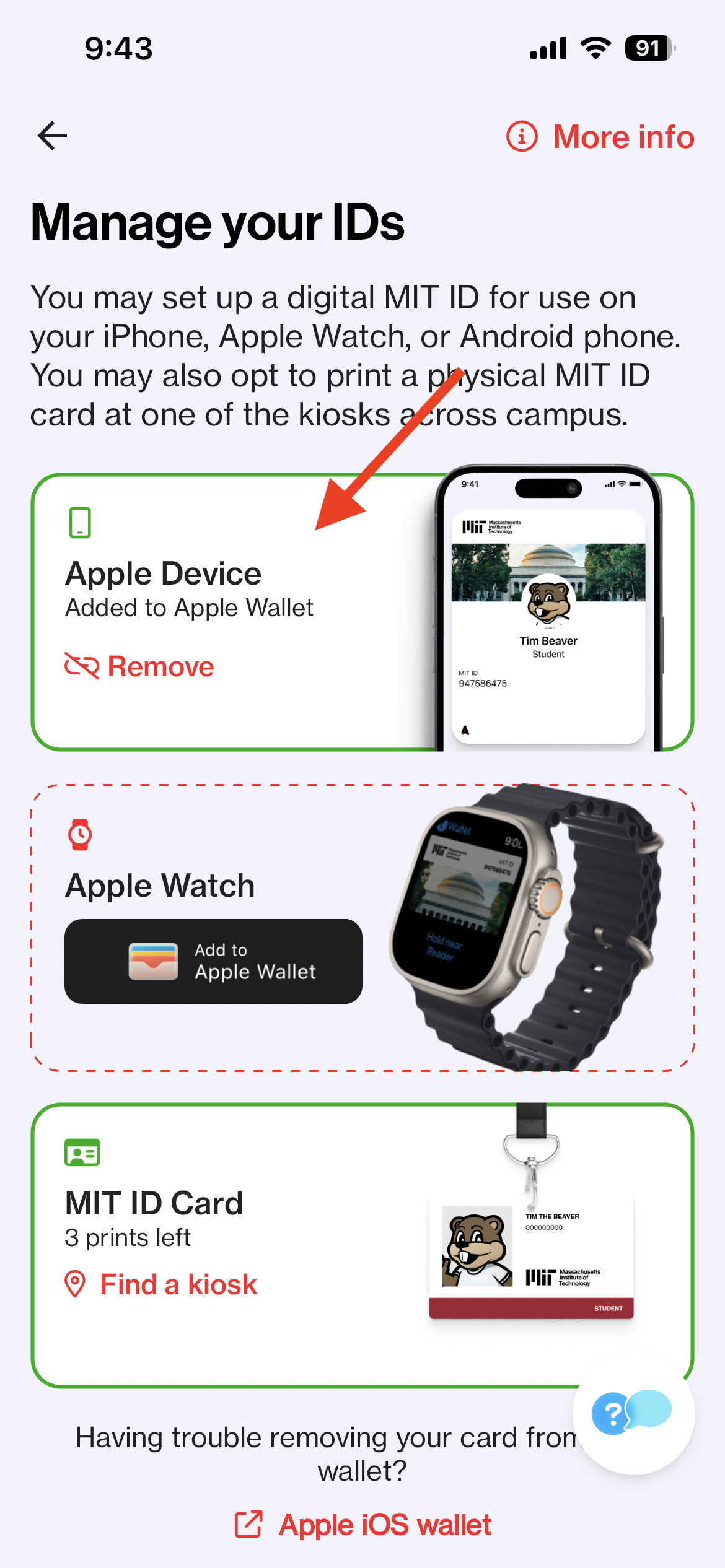
[2] In the MIT Atlas app, click on "MIT ID".
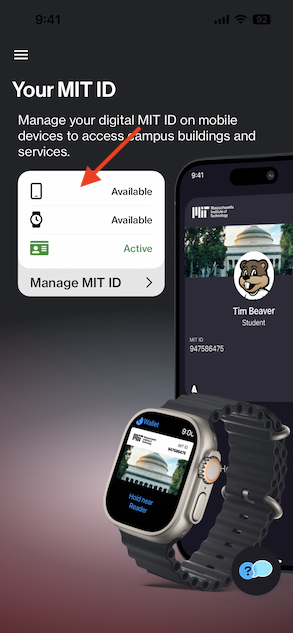
[3] Click on the entry that has a phone icon and is marked "Available" to add the MIT ID to this iPhone. If it shows "Active" then the MIT ID had already been added to another phone, and needs to be removed from that other phone before it can be added to this iPhone.
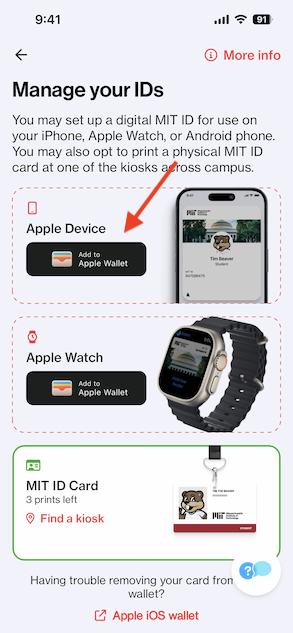
[4] Click on "Add to Apple Wallet" button.
[5] The form will already be filled out with your name and MIT ID number (obfuscated). Click on the "Continue" button and accept the Terms and Conditions.
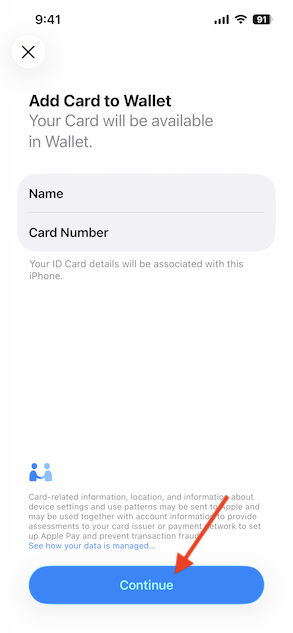
[6] At this point your MIT ID is added to the Apple Wallet.
Was this article helpful?
That’s Great!
Thank you for your feedback
Sorry! We couldn't be helpful
Thank you for your feedback
Feedback sent
We appreciate your effort and will try to fix the article